12 Jun, 2026
 04 Mins read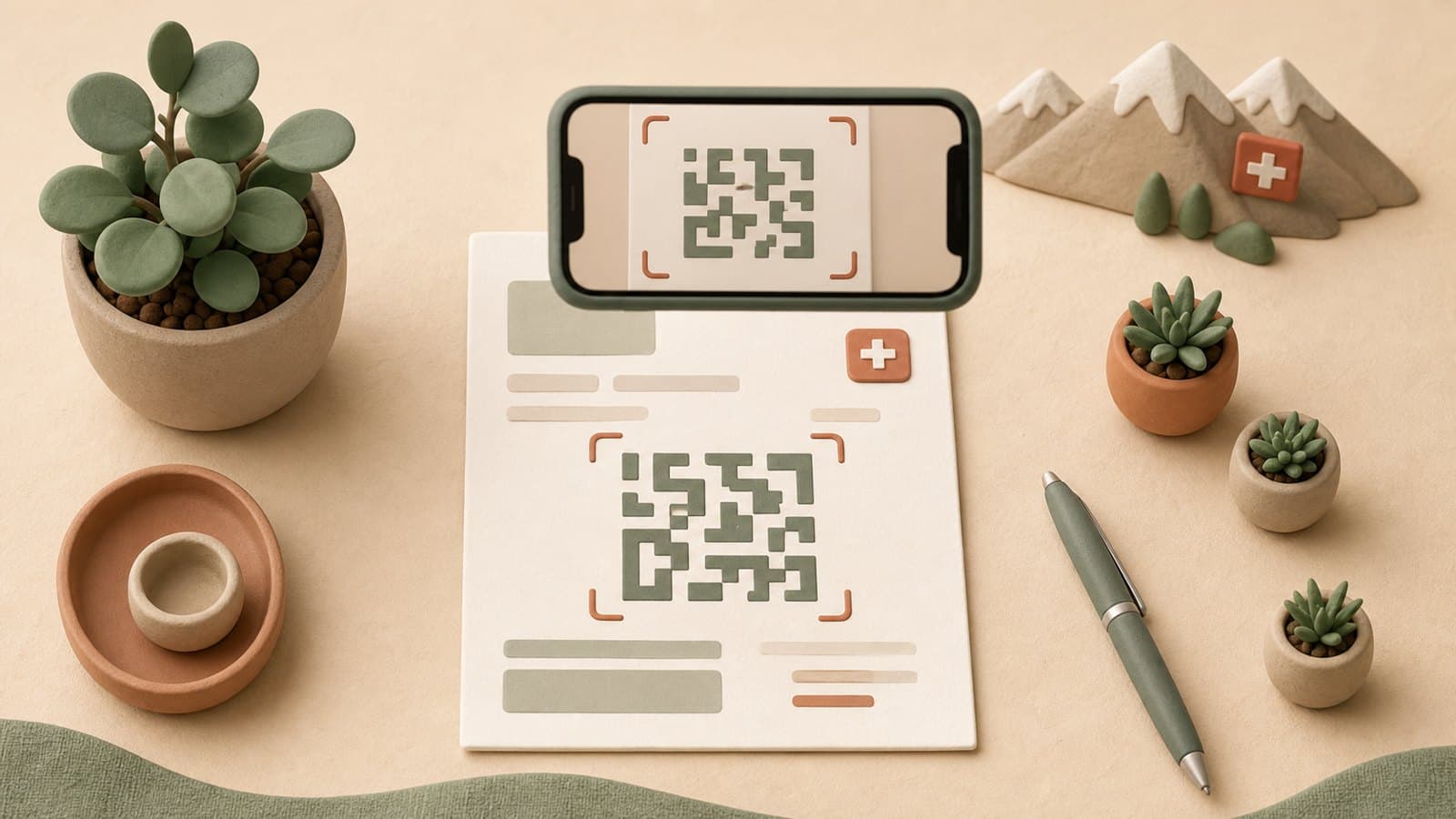
The QR-bill has been in force in Switzerland since 1 October 2022 — the date on which the old orange and red payment slips were definitively withdrawn. If your business invoices clients in Switzerland or Liechtenstein, you are issuing or receiving QR-bills. But between "knowing that it exists" and "using it effectively", there is a whole practice to master.
This guide does not revisit the basic definitions — for that, see our QR-bill glossary. It explains how to do it, step by step.
Step 1 — Obtain your QR-IBAN from your bank
The first thing to do before issuing a single QR-bill: obtain a QR-IBAN from your bank. This account number starts with QR-CH followed by 25 characters. It differs from your standard IBAN and cannot be used in its place for ordinary payments.
How to proceed:
- Log in to your e-banking or contact your relationship manager.
- Most Swiss banks (UBS, Raiffeisen, PostFinance, ZKB, etc.) issue a QR-IBAN on request, often at no additional charge.
- Also note your billing ID if you wish to use structured payment references (QR reference).
Important point: The QR-IBAN must correspond to the account on which you wish to receive payments. If you have multiple business accounts, you can have multiple QR-IBANs — one per account.
Step 2 — Create a compliant QR-bill
A valid QR-bill has two parts: the standard invoice document (your usual format) and the QR payment slip at the bottom of the page. This slip contains:
- The Swiss QR code (black-and-white square with a Swiss cross in the centre)
- The receipt on the left (the part the payer retains)
- The payment section on the right (with all the readable data)
Mandatory fields
| Field | Content |
|---|---|
| Account | Your QR-IBAN |
| Amount | Amount due (or blank if variable) |
| Currency | CHF or EUR |
| Creditor | Your business name and full address |
| Reference | QR reference (27 digits) or no reference |
| Additional information | Invoice number, description (optional) |
With Neoffice
In Neoffice, generation is entirely automatic: you create your invoice as usual, the QR payment slip is generated and positioned at the bottom of the last page of the PDF. The QR reference automatically includes your invoice number for reconciliation.
Step 3 — Send the QR-bill
The QR-bill can be sent:
- By email in PDF — this is the most common method. The recipient prints the payment slip or scans the QR code directly from their screen.
- By post — A4 printing, the slip occupies the bottom third of the page.
- Via eBill — structured electronic format, directly into the recipient's e-banking. Requires integration with an approved eBill service provider.
Practical tip: For clients who pay regularly (subscriptions, rent, recurring services), eBill is significantly more efficient: the client receives the invoice directly in their e-banking and can pay it with one click, without manual data entry.
Step 4 — Receive and scan a QR-bill
If you are the payer
When you receive a QR-bill from one of your suppliers:
- Via e-banking or mobile app: almost all Swiss banks allow you to scan the QR code with your smartphone. All the data (amount, account, reference) is imported automatically — no more manual entry, no more transcription errors.
- Via your accounting software: Neoffice allows you to import a QR-bill PDF directly to create the corresponding accounting entry.
- Online payment: in your e-banking, use the "Pay an invoice" function and scan or import the QR code.
Retaining the receipt
The receipt (left-hand part of the slip) is handed to the payer as proof of payment for cash payments or counter payments. For bank payments, the bank's confirmation serves as a receipt.
Step 5 — Automatic payment reconciliation
This is where the QR-bill delivers its full potential for your accounting. The QR reference (27 digits) is unique per invoice. When your client pays, your bank transmits this reference in the account statement (camt.054 or ISO 20022 file).
Neoffice reads these bank files and automatically reconciles each received payment with the corresponding invoice. Result: your trade receivables are updated without any manual intervention.
Typical flow:
- You issue the invoice → QR reference generated
- The client pays via e-banking
- Your bank credits your account and transmits the reference
- Neoffice imports the statement → invoice marked "paid"
Common mistakes to avoid
1. Confusing QR-IBAN and standard IBAN
The QR-IBAN must start with QR-CH. If you enter your standard IBAN in the QR-IBAN field, the invoice will be technically invalid and some software will refuse to process it.
2. An incomplete creditor address
The QR-bill standard requires a complete address: street, number, postcode, locality, country code. A partial address ("Rue du Commerce, Lausanne" without a postcode) makes the invoice non-compliant.
3. Correcting the amount after generation
The QR code encodes the amount. If you correct the amount by hand on the document but not in the QR code, the two data items diverge. Always regenerate the entire invoice.
4. Ignoring the reference format
The QR reference (27 digits) and the creditor reference (RF + 23 characters) are not interchangeable. Check that your software uses the correct type based on your bank.
5. Publishing a low-resolution QR code
On a printed document, the QR code must be scannable. Too low a resolution or rescaling in a PDF can make the code unreadable by a scanner. Always test with your bank's app before sending to clients.
What Neoffice handles for you
- Automatic generation of the QR payment slip, positioned at the bottom of the page
- QR-IBAN configured once, applied to all invoices
- Unique references per invoice for reconciliation
- Reading of received QR-bills (suppliers) for automatic entry
- camt.054 import for automatic payment reconciliation
- eBill support for your professional clients
The QR-bill is the foundation of modern invoicing in Switzerland. Properly configured, it eliminates the majority of manual payment tracking tasks. If you want to see how Neoffice automates this flow end to end, try free for 7 days.
Generate your QR-bills automatically
Neoffice generates and reads QR-bills natively, with automatic payment reconciliation. Try free for 7 days.